

Cordova
What is the RudderStack Cordova SDK?
Apache Cordova is an open-source, cross-platform application development framework. The RudderStack Cordova SDK lets you track event data from your Cordova app and send it to your preferred destination platforms via RudderStack.
Refer to the GitHub repository to access the SDK's codebase and the sample implementation.
SDK setup requirements
To set up the Cordova SDK, follow these steps:
- Sign up and log into your RudderStack account.
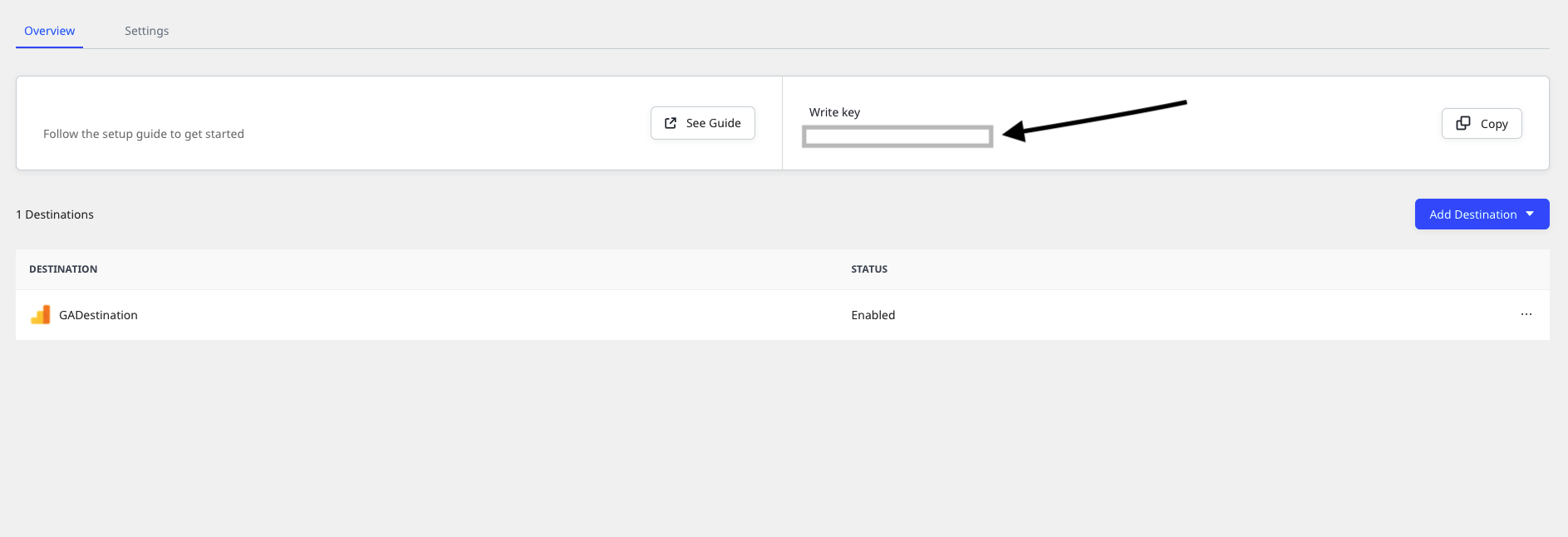
- Add a new Cordova source and note the source write key, as shown:

- You will also need your data plane URL. Follow this section for more information.
Installing the SDK
To add the Cordova SDK as a dependency, navigate to the root folder of your application and run the following command:
cordova plugin add rudder-sdk-cordovaInitializing the RudderStack client
After adding the SDK as a dependency, you need to set up the SDK. Add the following code in the onDeviceReady() function of your home page to initialize the SDK.
A sample Cordova SDK initialization is as shown:
RudderClient.initialize(WRITE_KEY , { dataPlaneUrl: DATA_PLANE_URL}) Make sure to use the await keyword with the initialize call.
The setup method has the following signature:
| Name | Data Type | Presence | Description |
|---|---|---|---|
writeKey | string | Required | Your Cordova source writeKey from the dashboard. |
configuration | JSON Object | Optional | Contains the RudderStack client configuration. |
options | JSON Object | Optional | Extra options to be pass along with the event. |
Check the Configuring your RudderStack Client section below for detailed information on the parameters you can send in the
configurationobject.Check the Configuring your options object section below for detailed information on the parameters you can send in the
optionsobject.
Identify
The identify call lets you identify a visiting user and associate them with their actions. It also lets you record the traits about them like their name, email address, etc.
For more information on the identify call and the supported fields, refer to the RudderStack Events Specification guide.
As a best practice, we recommend calling identify at the start of every session or page load for logged-in users. This will ensure all their latest traits are captured in all the subsequent events.
A sample identify call is as shown below:
RudderClient.identify("userId", { address: { city: "Hyderabad", country: "India", state: "Telangana", }, birthday: "1984/07/17", company: { name: "RudderStack", id: "RS", industry: "IT", }, email: "john@rudderstack.com", firstName: "john",});The identify method has the following signatures:
| Name | Data Type | Presence | Description |
|---|---|---|---|
userId | string | Required | User identifier in your database. |
traits | JSON Object | Optional | Information related to the user traits. |
options | JSON Object | Optional | Extra options for the identify event. |
For more information on the behavior of the options property, refer to the Configuring your options object section below.
Track
The track call lets you record the customer events, i.e. the actions that they perform, along with any properties associated with the action.
Each user action is called an event. Every event has a name associated with it, e.g. Product Reviewed. This event might also have some properties associated with it, like review_id and rating.
For more information on the track call and the supported fields, refer to the RudderStack Events Specification guide.
A sample track event called Order Completed using the Cordova SDK is shown below:
RudderClient.track('Order Completed', { checkout_id: '18310159091413-2', order_id: '1153390412189-01', affiliation: 'Google Play Store', total: 68.00, subtotal: 60.00, revenue: 70.00, shipping: 5, tax: 3, discount: 10, coupon: 'NEWUSER', currency: 'USD', products: [{ product_id: '853913-410121910', sku: 'FF-21', name: 'Varsity Graphic T-Shirt', price: 25, quantity: 1, category: 'Clothing', url: 'https://www.myntra.com/tshirts/huetrap/huetrap-men-beige/111/buy', }, { product_id: '113413-190158920', sku: 'GF-67', name: 'Printed Round Neck T-Shirt', price: 15, quantity: 3, category: 'Clothing' } ]})The track method has the following signature:
| Name | Data Type | Presence | Description |
|---|---|---|---|
name | String | Required | Contains the name of the event that you want to track. |
properties | JSON Object | Optional | Contains the extra properties to be sent along with the event. |
options | JSON Object | Optional | Contains the extra event options. |
RudderStack automatically tracks the following optional events:
Application InstalledApplication Opened
You can disable these events by sending the property trackLifecycleEvents as false within the configuration object while initializing RudderClient. However, we highly recommend keeping them enabled.
Group
The group call lets you link an identified user with a group, such as a company, organization, or an account. It also lets you record any custom traits associated with that group, such as the name of the company, the number of employees, etc.
An identified user can be a part of more than one group.
For more information on the group call and the supported fields, refer to the RudderStack Events Specification guide.
A sample group call is shown below:
RudderClient.group("group1", { groupname: "RS", groupwork: "Mobile dev"})The group method has the following signatures:
| Name | Data Type | Presence | Description |
|---|---|---|---|
groupId | string | Required | The organization ID with which you want to associate the user. |
groupTraits | JSON Object | Optional | Any other property of the organization that you want to pass along with the call. |
options | JSON Object | Optional | Extra options for the group event. |
Screen
The screen call lets you record whenever your user views their mobile screen with any additional relevant information about the viewed screen.
For more information on the screen call and the supported fields, refer to the RudderStack Events Specification guide.
A sample screen call is shown below:
RudderClient.screen("Home Screen", { mobile: "pixel"})The screen method has the following signature:
| Name | Data Type | Presence | Description |
|---|---|---|---|
screenName | string | Required | Name of the viewed screen. |
property | JSON Object | Optional | Extra properties that you want to pass along with the screen call. |
option | JSON Object | Optional | Extra options to be passed along with screen event. |
Alias
The alias call lets you merge different identities of a known user.
alias is an advanced method that lets you change the tracked user's ID explicitly. This method is useful when managing identities for some of the downstream destinations.
For more information on the alias call, refer to the RudderStack Events Specification guide.
A sample alias call is shown below:
RudderClient.alias("userId")The alias method has the following signature:
| Name | Data Type | Presence | Description |
|---|---|---|---|
newId | String | Required | The new userId that you want to assign to the user. |
options | JSON Object | Optional | Event level options. |
Reset
You can use the reset method to clear the persisted traits from the identify call. We recommend calling it during the Logout operation.
A sample reset call is as shown:
RudderClient.reset()Enabling/Disabling User Tracking via the optOut API (GDPR Support)
RudderStack gives the users (e.g., an EU user) the ability to opt out of tracking any user activity until the user gives their consent. You can do this by leveraging RudderStack's optOut API.
The optOut API takes true or false as a Boolean value to enable or disable tracking user activities. This flag persists across the device reboots.
The following snippet highlights the use of the optOut API to disable user tracking:
RudderClient.optOut(true);Once the user grants their consent, you can enable user tracking once again by using the optOut API with false as a parameter sent to it, as shown:
RudderClient.optOut(false);optOut API is available in the Cordova SDK starting from version 1.0.1.Configuring the RudderStack client
You can configure your RudderStack client by passing the following parameters in the configuration object of your RudderClient.initialize() call:
| Parameter | Type | Description | Default Value |
|---|---|---|---|
logLevel | RudderClient.LogLevel | Controls how much of the log you want to see from the Cordova SDK. | RudderClient.LogLevel.None |
dataPlaneUrl | string | Your RudderStack Data Plane URL. | https://hosted.rudderlabs.com |
flushQueueSize | int | The number of events included in a batch request to the server. | 30 |
dbThresholdCount | int | The number of events to be saved in the SQLite database. Once the limit is reached, older events are deleted from the database. | 10000 |
sleepTimeout | int | Minimum waiting time to flush the events to the server. | 10 seconds |
configRefreshInterval | int | RudderStack fetches the config after this time interval. | 2 |
trackLifecycleEvents | boolean | Determines if the SDK should capture the application life cycle events automatically. | true |
Configuring your options object
The sample format of the options object that can send along with all the above-mentioned API calls is shown in the following snippet:
{ "externalIds": { "brazeExternalId": "externalId1" }}The options object has the following signature:
| Name | Data Type | Presence | Description |
|---|---|---|---|
externalIds | JSON Object | Optional | Each key within externalIds object should define the type of external ID, and its value should be a String or Integer. |
integrations | JSON Object | Optional | Each key within the integrations object should hold the display name of your desired destination. Its value should be a boolean indicating whether you want to send that event or not. For more details check the Enabling/disabling events for specific destinations section below. |
Enabling/disabling events for specific destinations
RudderStack lets you send your event data only to the explicitly specified destinations and filtering out the rest. You can do this in one of the following two ways:
- While initializing the Cordova SDK
- While making any event call
Passing destinations during SDK initialization
This approach is useful when you want to send the events to specific destinations across all the event calls made using the SDK.
A sample SDK initialization is shown below:
RudderClient.initialize("1n0JdVPZTRUIkLXYccrWzZwdGSx", { dataPlaneUrl: "https://0ff6-175-101-36-4.ngrok.io", flushQueueSize: 30, dbCountThreshold: 10000, configRefreshInterval: 2, logLevel: 0, sleepTimeOut: 10, trackLifecycleEvents: true, recordScreenViews: true,}, { integrations: { MixPanel: true, Amplitude: true }})Passing destinations during event calls
This approach is useful when you want to send particular events to specific destinations, or if you want to override the destinations specified during the SDK initialization for a particular event.
An example is shown below:
RudderClient.screen("Home Screen", { mobile: "pixel"}, { integrations: { All: false, Salesforce: true }})In the above example, the values of the screen call are passed only to the Salesforce destination.
Anonymous ID
We use the deviceId as anonymousId by default. You can use the setAnonymousId method to override the default anonymousId, as shown:
RudderClient.setAnonymousId("CustomAnonymousId");You need to call setAnonymousId method before calling initialize
Advertisement ID
RudderStack collects the advertisement ID if it is enabled by the user. To set the advertising ID yourself, you can use the setAdvertisingId method as shown:
RudderClient.setAdvertisingId("SampleAdvertisingId")Setting the device token
You can pass your device-token for push notifications to be passed to the destinations which support the Push Notifications feature. RudderStack sets the token under context.device.token.
An example of setting the device-token is as shown:
RudderClient.putDeviceToken("sampleDeviceToken");FAQs
Where can I find the source write key?
Once you set up a Cordova source in the RudderStack dashboard, you will be able to view the source Write Key, under the Overview section, as shown:
Where can I find the Data Plane URL?
Refer to this section for more information on the Data Plane URL and how to get it.
Debugging
If you face any unexpected behavior of the SDK, you can turn on the VERBOSE or DEBUG logging to find out what the issue is.
You configure logging behaviour of your SDK by sending the value of logLevel property of the configuration object appropriately as defined [here] and pass it over to the initialize call as shown below:
RudderClient.initialize( WRITE_KEY , { dataPlaneUrl: DATA_PLANE_URL , logLevel: RudderClient.LogLevel.VERBOSE, trackLifecycleEvents: true})Contact us
In case of any queries while setting up or using the Cordova SDK, you can contact us or start a conversation on our Slack channel.